
Git Collaboration and Etiquette
 Adapting to Git conventions
Given the importance of following Git best practices as a professional software engineer, we will be strict in marking your Git usage. You need to follow the Git etiquette and best practices outlined in this page.
Of course in reality there are different ways and conventions to use Git. But one of the things you need to learn is to adapt to the conventions of the team you are working with. In this course, we are setting the conventions for you to follow. When you go work for a company, you will need to adapt to their conventions. You then go to another company, you will need to adapt again to their conventions.
So while some of the requirements might be a bit arbitrary, they are there to help you learn how to adapt to different conventions. So please follow the ones we have set out for you in this course.
Your GitHub username
Please make sure you stick to the same GitHub username throughout the entire course. Otherwise, there might be issues in linking your alternative usernames to your University identity. This means you won’t be getting credit for your work, running the Code Style tool, etc.
So please stick to the same GitHub account throughout the entire course (includes labs, Alpha, Beta, and Final). It just makes things a lot easier for you and for us.
(Inadvertent) Tampering with your Git commit history
For obvious reasons, it is not a good idea to tamper with your Git commit history. This is especially important in a team environment (like this course), where the commit history is a shared resource that everyone relies on.
If you have (even inadvertently) tampered with your commit history, we will be able to tell. This will most likely result in a severe penalty.
Sometimes you might feel you “messed up” your commits, and you want to “fix” them. This is not a good idea. However, if you Googled how to “fix” it up, you will likely find some instructions that involve you using (very) dangerous commands, and you should not use them.
As a starting point, any of the following should never be used in assignments for this course:
- Do not use
git push --force - Do not use
git commit --amend - Do not use
git reset - Do not use
git rebase - Do not use
git squash - Or any other similar commands that you might find on the Internet.
All commits must be preserved, including the one that is automatically created by GitHub Classroom, and even ones you think are “bad” or “wrong”. We will not be penalising you for “bad” commits — so keep them in there. We will be penalising you for tampering with your commit history.
The only “editing” command you are allowed to do is git revert (not to be confused with git reset!). This one is fine, because it keeps the original commit history and just adds a new commit that undoes the changes in the previous commit (so, it’s an additional commit on top of the current commit history, as if you had done it manually yourself). Here’s a nice explanation on Stack Overflow.
If you are unsure about anything, please ask us in the Ed Discussion forum before you do anything of this nature.
A recent survey from JetBrains https://www.jetbrains.com/lp/devecosystem-2021/ confirms that Git is the version control system technology most used by developers (>93% of the surveyed developers use Git). As a software engineer, besides learning how to use Git, you should learn the Git etiquette and best practices. Indeed, modern software is too complex to be implemented by only one developer. Software is a collaborative effort. Learning Git best practices ensures effective and efficient collaboration among team members.
This page includes the Git etiquette and best practices that you should follow in this course. Note that you must follow the GitHub Flow (see lectures notes). Some of the Git marks will be given for properly using the GitHub Flow.
While we encourage you to follow all of the Git etiquette and best practices discussed on this page, only a subset of them will be marked. To understand the requirements for each release, refer to the table below:
| Category | Rule | Alpha | Beta | Final |
|---|---|---|---|---|
| Commit | No Compilation Error | ✓ | ✓ | ✓ |
| Commit Atomicity | ||||
| Meaningful Commit Messages | ||||
| Commit Message Length | ✓ | ✓ | ✓ | |
| No Binary Files | ✓ | ✓ | ✓ | |
| No Empty Commits | ✓ | ✓ | ✓ | |
| GitHub Flow | Feature Branching (GitHub flow) | ✓ | ✓ | |
| Consistent Branch Names | ||||
| No Stale Branches | ✓ | |||
| Linked Pull Request Issue | ||||
| Review Pull Requests | ✓ | ✓ | ||
| Constructive Feedback | ||||
| Resolved Conversations | ||||
| General | Force Pushes | ✓ | ✓ | ✓ |
| Unresolved Conflicts | ✓ | ✓ | ✓ |
The following section gives an outline and some guidance to each of the Git etiquette rules and best practices
No Compilation Errors
This is a very important rule.
Your code should compile at each commit in the main branch, not only the final commit.
As a professional software engineer, you should always ensure that your code compiles before you commit it. This is a basic requirement of good software development practice. This is especially important in a team environment, where your team members rely on your code to be in a working state. Why would you commit code that doesn’t compile? It’s like leaving a mess for someone else to clean up.
We do appreciate that you might be working on a feature that is not yet complete, and you might want to commit your code so you don’t lose it. That’s fine. But you should not be committing (or merging) this code to the main branch. You should be committing this code to a feature branch, and only merging it to the main branch when it is complete and tested.
If your code does not compile a a given commit (in the mainbranch), it is considered to be a “broken” commit.
Regardless of the reason it doesn’t compile (e.g., syntax error, you forgot to git add a new file to the commit, you haven’t tested your code yet, etc.), it is not acceptable.
How do you avoid this?
-
Test your code. Before you commit, make sure your code compiles. If you’re adding new code, make sure it compiles and runs as expected. If you’re changing existing code, make sure it still compiles and runs as expected.
-
Check git status. Before you commit, check
git statusto see what files are staged for commit. Make sure you’re not missing any files that should be committed. In particular, pay attention to theUntracked filessection as that means the file(s) are not staged for commit and completely ignored at that point. -
Commit frequently. If you commit frequently, you will be able to catch compilation errors early. If you commit infrequently, you might have to go back a long way to find the error, and you might lose a lot of work in the process.
As you can see, this is not just about getting marks. This is about learning to be a professional software engineer.
While there are no “test cases” in this course, we determine if your code compiles by building your Maven project:
./mvnw clean compile for Unix/macOS or .\mvnw.cmd clean compile for Windows
“I have a broken commit. What do I do? Will I lose marks?”
Don’t worry. We understand that mistakes happen. But we might still penalise you though. It hurts us also, but that’s how much we want you to learn.
If you have a lot of broken commits, it’s a sign that you’re not following good software development practice, or you’re not understanding the implications of your edits, or you’re not double-checking you staged all the files you need to commit, or you’re not testing your code before you commit, or you’re hoping we won’t notice.
Don’t try and “fix” the broken commit. Just leave it there. It’s a good reminder to you that you made a mistake, and you should learn from it. You also aren’t allowed to “fix” broken commits, as that would be tampering with your commit history and the consequences of that are more severe (e.g., potentially losing even more marks).
“But my teammate made the broken commit, not me!”
What if the compilation error was made by one team member… Will the entire team get penalised?
Yes!
This is because we require you to follow the GitHub Flow, which means that you should not be merging broken code to the main branch (and this should be caught in the pull request review process by the other team member). So the fact that the broken code was merged to the main branch means that the entire team is responsible for it.
“I really don’t want to lose marks. My prospects of getting a job depend on my GPA.”
Students that have failed courses managed to get a job, so don’t worry about that “lower grade” too much.
We will not answer the following questions:
- “Is one broken commit OK?”
- “How many marks will I lose for broken commit(s)?”
- and so on.
We aren’t here to making you fail the course. We are here to help you learn. Just like you made a mistake in your high school maths exam, you might lose a few marks, but you won’t fail the course. Please get over the mentality of “how many marks will I lose?” and focus on “how can I learn from this?”.
 SOFTENG206 Marking!
Your code should compile for every commit in the main branch, in all of Alpha, Beta, and Final releases.
Commit Atomicity
Each commit should introduce one atomic unit of change. It should fix one bug, add one feature, refactor one class, and do so completely, rather than spreading the change across several commits.
Commits should focus on a single ‘task’ (or part of a task) that you are trying to complete. Ensure that commits do not encompass multiple tasks by becoming too large and fragmented by properly breaking down the task into smaller commits. This best practice is encouraged for the following two reasons:
- Ensures that changes are easy to revert or roll back at any point, such that part of a task can be rolled back without requiring that other parts of the task are also rolled back.
- It makes it easier to merge work. Commits are applied individually when merging to a branch which means that if a commit conflicts, the type of conflicting changes are logically consistent and minimal in code size.
Guidance
- Roughly plan the stages of your task and commit when you feel that you have reached a ‘checkpoint’ where you would feel comfortable reverting to at any point in the future.
- Ensure that your commits do not leave the project in a broken state (compilation errors or functional bugs). If you are in a place where you have to revert commits you are not going to be happy when you have to fix additional bugs from a previous commit.
More Information
- A guide on how to think about atomic commits: https://www.freshconsulting.com/insights/blog/atomic-commits/
- https://gist.github.com/tarrsalah/4e8936652fa6dfc13c71e866f6f3f768
Meaningful Commit Messages
When creating a commit message (git commit -m "This is a commit message"), ensure that the message is informative and relevant to the changes that the commit encompasses.
Writing good commit messages is an extremely beneficial skill. Indeed, commit messages
are a means to communicate your code changes to your team. Also, commits are an archive of changes (you can read the history of the project with git log). They can become an ancient manuscript to help you and future team members decipher the past, and make reasoned decisions in the future.
More Information
- A good and popular standard for conventional commit messages: https://www.conventionalcommits.org/en/v1.0.0/#summary
Commit Message Length
We will report a Git violation if your commit messages have less than five words. This is an arbitrary word count for a commit message. However, it is helpful as it ensures you are providing value to your peers by creating informative and nontrivial commit content. We discourage short messages when committing as others see your commits will not have enough information to understand the content of the commit.
SOFTENG206 Marking!
Commit messages should have at least five words.
No Binary Files
Binary files (e.g., .class or .jar files) should NOT be added to your Git repo. Compiling your source code generates binary artifacts (e.g., .class or .jar files). Such generated files should be excluded from your Git history, as they are generated from the source code.
Guidelines
- Create a
.gitignorefile that allows Git to ignore certain files from your project directory. In a nutshell, a.gitignorefile is a plain text file where each line contains a pattern for files/directories to ignore.
For example, a .gitignore file with
*.class
bin/
target/
says to Git to ignore *.class files and the folders bin and target, which are the folders where Eclipse and Maven generate binaries files, respectively.
This means that if you try git add MyClass.class, Git will not allow you to do that:
> git add MyClass.class
The following paths are ignored by one of your .gitignore files:
MyClass.class
hint: Use -f if you really want to add them
Note that the .gitignore file is not limited only to binary files. Your IDE, build automation tool, or Operating System might create files specific to your local machine and should not be versioned in Git (e.g., .project, .idea/).
You should put such a file into the root of your project. The website https://www.toptal.com/developers/gitignore can help you to generate .gitignore files specific for your working environment: OS (e.g., Windows, Mac), IDE (Eclipse, Intellij), Programming Language etc… The template repositories of Escape Room already contain one, which is general enough to consider the most popular operating systems and IDEs, as well as Maven and Java (see https://www.toptal.com/developers/gitignore/api/git,java,linux,macos,maven,eclipse,windows,netbeans,intellij+all,visualstudio,visualstudiocode){:target=”_blank”}.
SOFTENG206 Marking!
Files with extension .class, .jar, or .exe should not be added into your Git repository.
No Empty Commits
Avoid empty commits Git allows to make an empty commit (with the flag –allow-empty). A commit that does not add new or modified code to the repository and serves little purpose in the Git history. For the purpose of your assignments, using empty commits is considered to be forging your Git development history and should be avoided.
SOFTENG206 Marking!
You should not have empty commits.
Feature Branching (GitHub Flow)
When adding code to the codebase, a branch should be created, code committed to that branch, and then a pull request should be made to your primary branch, which is reviewed and merged. This is the so-called Github Flow. Directly committing code to the main branch is discouraged as it muddles development history and makes it difficult to organize the ordering of features to be put into your project.
More information
- An overview of the GitHub Flow: https://docs.github.com/en/get-started/quickstart/github-flow
SOFTENG206 Marking!
You should never directly committing and pushing on the main branch. The main` should only be updated by merging pull requests
Consistent Branch Names
Correctly naming branches is important for ease of access and being able to see at a glance what a branch contains in code changes. Another enhancement you can make to branch names is using group tokens. Although not every branch requires group tokens, it gives the ability to group together families of branches. For example, the following branch names:
- feature/context-change
- feature/cli-subcommand
- fix/markdown-generator
- fix/http-headers
These are branch names that have the groups tokens feature and fix with a separator token / (slash). Group tokens also allow you to quickly list and access all branches within a group by using tab expansion:
git checkout fix/<TAB>
It will list all of the branches that exist in the fixed group, which is helpful to see what fixes there are on your version control tree.
Guidelines
- Organize with your group which branch naming conventions and naming groups you would like to use, including what group tokens and separator conventions you should use
- Ensure that your branch names and group tokens are short enough to allow people to quickly understand names and change branches. Short branch names will additionally ensure that the branch name does not pollute logs.
- Avoid uppercase letters in branch names, as they are known to create issues in Git. To separate words, use
-.
More Information
- An overview of good branch naming conventions: https://stackoverflow.com/a/6065944
No Stale Branches
Stale branches are branches that are considered to be unused and have not received any commit activity within two weeks. Stale branches clutter your Git project by making it difficult to search for active development branches. A good Git repository will only have branches in active development, which additionally allows you to gather insight into what features are being worked on by team members. There are two options if you have a stale branch:
- Abandon the development of the branch by deleting the branch
git push –delete origin <branch-name>. - Continue working on the branch. After development on the branch is completed, create a pull request, get your peers to review the code, merge it into your primary branch (main) and delete the branch.
Guidelines
GitHub has a helpful UI for deleting the source branch when a pull request has been merged. It is good practice to use this feature to keep your active branches tidy:

SOFTENG206 Marking!
At any given time, the latest commit of a branch should not be older than 2 weeks.
Linked Pull Request Issue
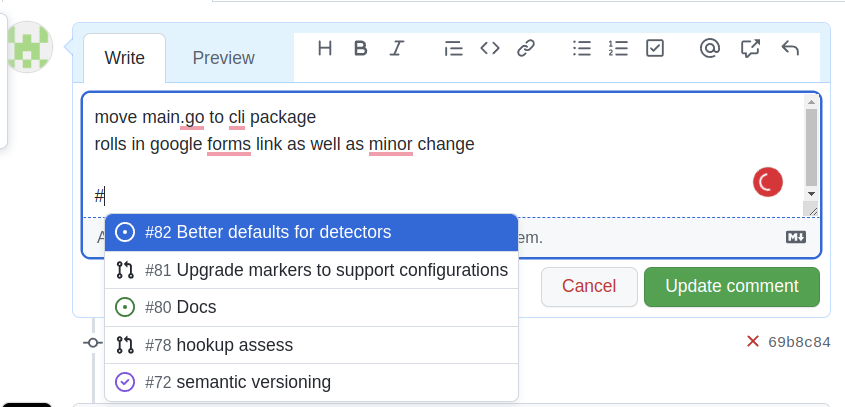
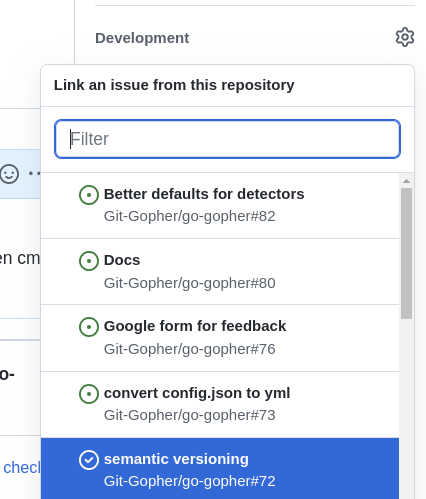
When creating a pull request good practice in some cases (creating features, implementing fixes) to link to an existing issue in your description when creating a pull request (if it exists). This gives context for and describes the nature of the pull request and allows you to link multiple pull requests to a single issue if it requires multiple atomic changes to the project.
Automatically linking:
Manually Linking
Guidelines
- Issues can be quickly added to a pull request by typing in the # symbol in the description dialog. This will display a list of the issues that exist on your Git repository and allows for quick selection.
- Issues can be manually added by selecting an issue from the
developmentdropdown from the right sidebar of the pull request.
More Information
- Pull request issue automatic link: https://docs.github.com/en/get-started/writing-on-github/working-with-advanced-formatting/autolinked-references-and-urls
- Pull request Issue manually link: https://docs.github.com/en/issues/tracking-your-work-with-issues/linking-a-pull-request-to-an-issue
Review Pull Requests
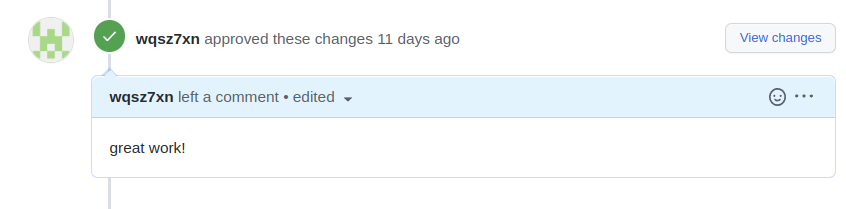
Pull requests (PRs) should be reviewed by at least one other person who is not the author of the PR before merging. Reviewing code before merging can catch issues with code that were not apparent to the author, and, when resolved, creates a higher quality codebase. Reviews should aim to constructively critique the state of the code and suggest improvements if any are required.
Please note that merging a PR is considered as accepting the PR. So, if you are the author of the PR, you cannot merge it yourself. Another team member who is not the author of the PR has to merge it (and write at least one comment, either as a code review or a general conversational comment).
More Information
- Pull request reviews: https://docs.github.com/en/pull-requests/collaborating-with-pull-requests/reviewing-changes-in-pull-requests/about-pull-request-reviews
SOFTENG206 Marking!
You cannot accept (merge) your own pull request. Another team member who is not the author of the pull request has to accept (merge) the pull request and write at least one comment.
Constructive Feedback
Try to make your review feedback as constructive as possible. Aiming to clearly state what is to be improved with the code without leaving the author of the code to feel bad about their work. Ideally, your feedback should be actionable, letting your group partner know exactly what is wrong and suggesting how to fix it. Constructive feedback allows your team to maintain a positive working environment and aids your productivity, making it a better experience for everyone involved.
Guidelines
- A guide for creating good feedback: https://about.gitlab.com/handbook/people-group/guidance-on-feedback/
Resolved Conversations
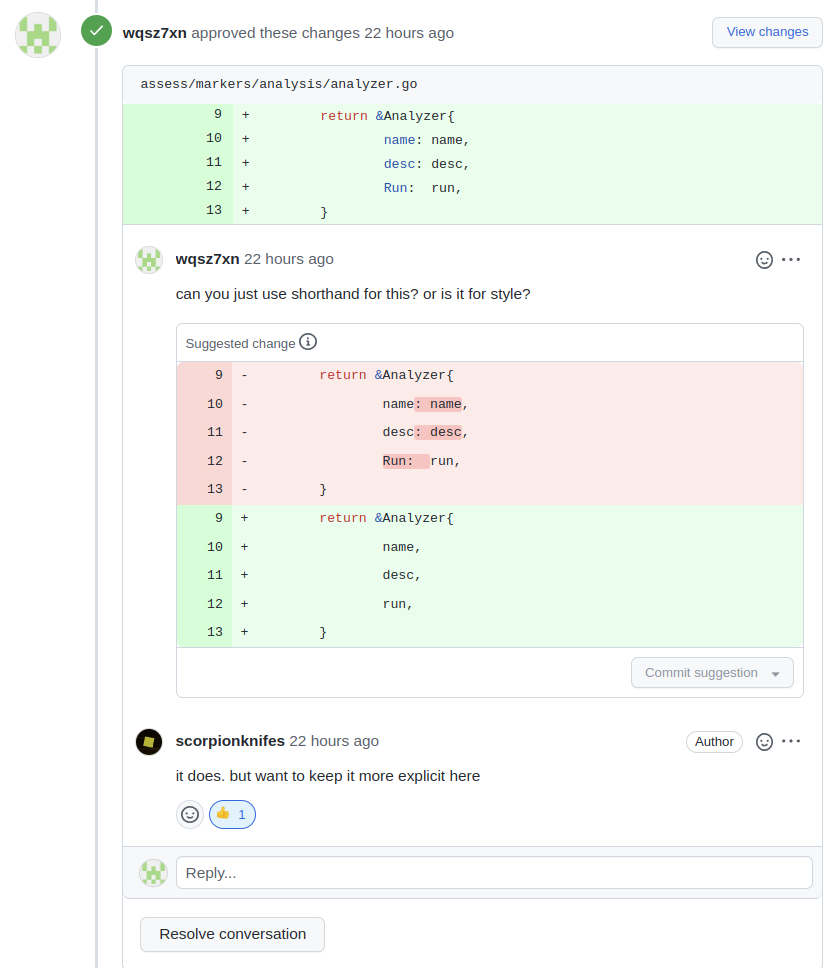
Reviews can also take place in the form of creating a series of comment threads (conversations) that relate to a part of the code contained within the pull request. This is a good practice as it allows more direct feedback to the code author. Before merging, these conversations should be marked as resolved before the pull request is merged to indicate that all discussion has finished and that there are no remaining issues.
Force Pushes
Force pushes are heavily discouraged as you risk losing commits as the branch history is overwritten. Instead of force pushing, consider using git-revert to revert the commits that have been made to the branch by creating a new commit. In this way, there is no risk of losing any commits that were made on a branch.
Guidelines
If a force push has overwritten somebody’s work and you wish to retrieve that work, there is still hope. Force pushes tell you which commit hash the force push updated from and to, meaning it is easy to change the branch back to the old commit (see here)
More Information
- Basic Git revert usage: https://www.atlassian.com/git/tutorials/undoing-changes/git-revert
- Undoing a force push: https://www.jvt.me/posts/2021/10/23/undo-force-push/
SOFTENG206 Marking!
You should never use the flag --force or -f when doing a git push
Unresolved Conflicts
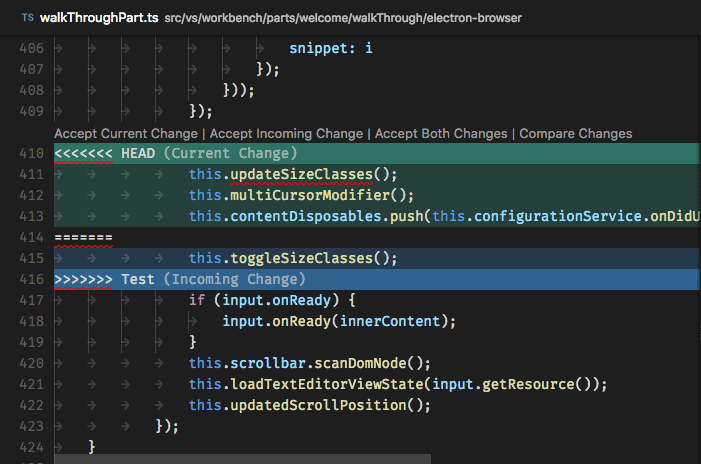
When a merge conflict occurs, it is easy to commit an unresolved conflict if you are not careful about resolving them before continuing a merge or commit. This is bad practice as it breaks the code by introducing symbols that will make the project fail to compile, which will need to be resolved later. An example is below of a merge conflict that should be resolved before continuing a merge or committing:
More Information
- Resolving merge conflicts: https://www.atlassian.com/git/tutorials/using-branches/merge-conflicts
SOFTENG206 Marking!
No commit should have files containing commit markers (e.g., >>>>>>>>)