
Installing Scene Builder
-
Go to https://gluonhq.com/products/scene-builder/#download to download the latest Scene Builder. Choose the file corresponding to your operating system.
-
Open the file and install the Scene Builder program. Take note where it was installed on your system.
-
You can now use Scene Builder to open FXML files and edit them.
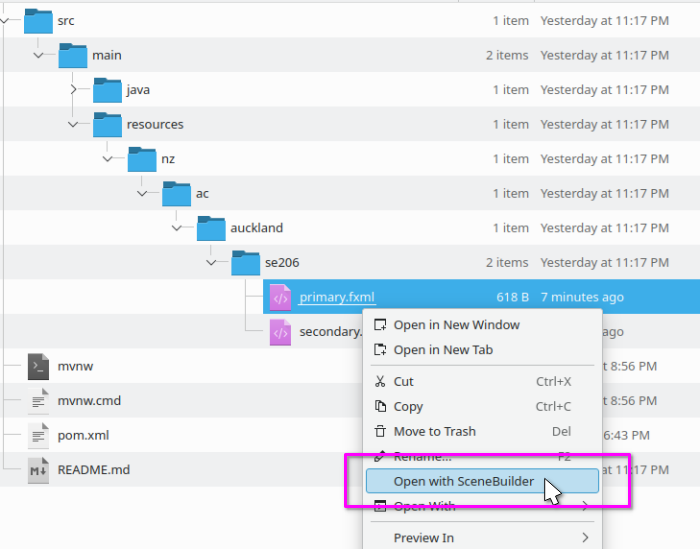
Opening FXML files from VS Code
If you use Visual Studio Code, you can install an extension to open FXML files directly in Scene Builder from your editor.
-
Open VS Code. Launch Quick Open with
Ctrl+P, paste the following command, and press enter:ext install bilalekrem.scenebuilderextensionAlternatively, open the SceneBuilder extension page and click Install.
-
Configure the Scene Builder executable path. Open the command palette (
Cmd+Alt+P), then run Configure Scene Builder path and select the Scene Builder executable you installed earlier. -
You can now open FXML files in Scene Builder using any of these options:
- Open an FXML file in your editor, then run Open in Scene Builder from the command palette (
Cmd+Alt+P). - Open an FXML file in your editor, right-click anywhere in the editor, and select Open in Scene Builder.
- In the Explorer window, right-click an FXML file and select Open in Scene Builder.
- Open an FXML file in your editor, then run Open in Scene Builder from the command palette (