
JavaFX Concurrency
The Word Hunter app
The starter code provided to you for the Word Hunter app is a simple dictionary application:
- The user is allowed to type words in the text field. The words must be separated by spaces.
- When the user presses the Search for definitions button, the app will perform a dictionary look up of all those words.
- An API (https://dictionaryapi.dev) is used to retrieve the definitions. Therefore, there needs to be an internet connection for the app to work.
- When the results are available, every word will have its own entry in the Accordion.
- There is a progress bar that should be gradually increasing as results come in.
- There is a bouncing ball. It doesn’t play any functional purpose, but we use it to inform us whether we have a responsive GUI or not.
Blocking/freezing GUI
Here’s a run through of the app given to you:
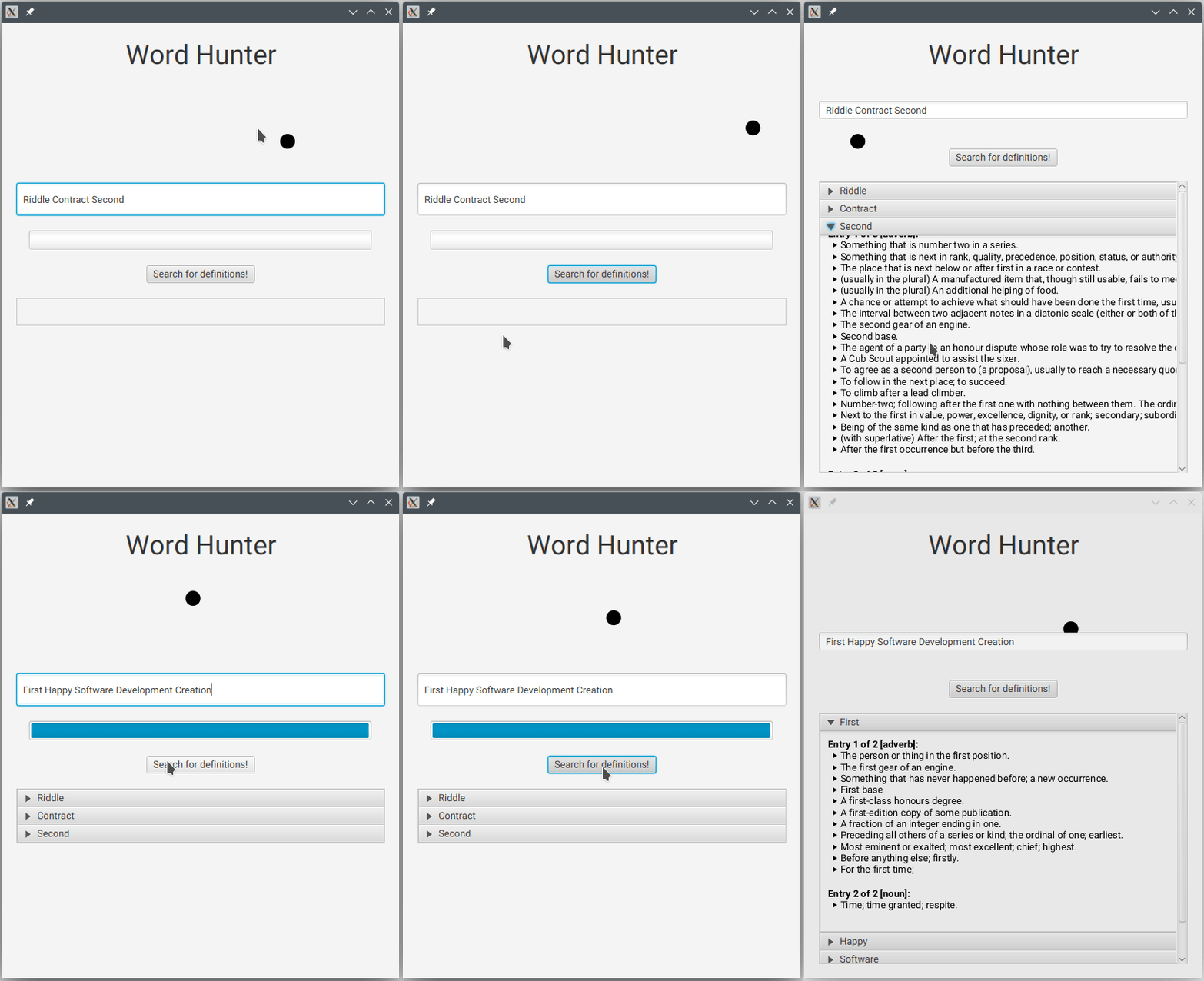
Problems with this app:
This app has many problems that makes it terrible. The UI is ugly and boring. Yes, completely agree. But that’s not our focus for today.
Today, we want to focus on another problem. When the user hits the Search for definitions button, we notice that the entire GUI freezes:
- The ball stops bouncing around.
- The Search for definitions button remains “pressed down”, as if it’s stuck.
- The user isn’t able to edit the content of the text field in preparation for another search.
- The progress bar doesn’t reveal any progress! It’s useless in fact:
- In the first search (for “Riddle Contract Second”), it jumps from 0% to 100%!
- In the second search (for “First Happy Software Development Creation”), it stayed at 100% the whole time (i.e., it didn’t reset to 0% for the new search).
- As results gradually come in, this is not reflected in the GUI. The Accordion does not gradually populate with results. Instead, everything suddenly appears when it’s 100% done. It would be nice if the user can see definitions for words as they roll in.
- Even if we had a “cancel” button, it wouldn’t actually allow the user to press it while the search is taking place. Meaning, the user will remain waiting without any idea of how much longer it’s going to take (or even whether it’s doing anything at all!).
Using concurrency for GUI responsiveness
We never want to create a GUI that freezes. It must always remain responsive. This allows the user to do other tasks in the meantime, and also to see progress of the current task. Even if there is nothing else that the user could do with the app (while the task is executing), we still want the app to make it clear it isn’t “hanging”.
Here’s the result we would like to achieve:
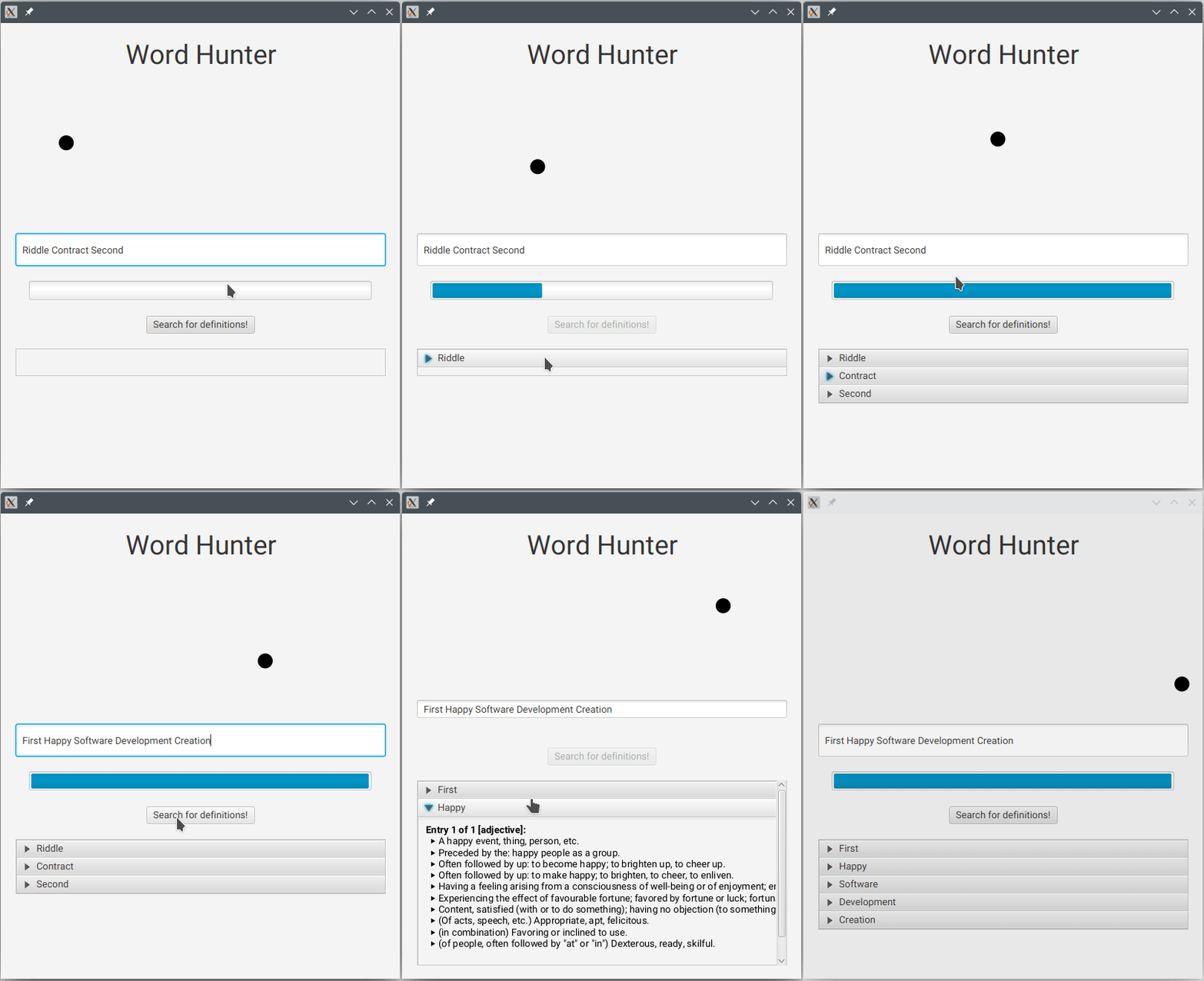
What makes it responsive?
This version correctly uses GUI concurrency to ensure that the app always remains responsive. Key observations include:
- The ball is always bouncing around—even when a search is taking place.
- The Search for definitions button becomes disabled. This isn’t the same as before, when it was “pressed down” as if it’s stuck. Here, we purposely disabled it so the user is aware that they cannot do another search until the current search is over.
- The user is allowed to edit the content of the text field in preparation for the next search.
- The progress bar conveys how far through the search we are. When a new search is started, it resets to 0% like we would expect.
- The Accordion gradually populates with results as they come in. The user doesn’t have to wait until all the results come back.
- While this app currently doesn’t have a “cancel” button, we can add this if we wanted. Since the app is actually responsive near, it means it has the chance to response to the user clicking on a cancel button.
You might find the documentation regarding JavaFX’s Task class useful:
https://openjfx.io/javadoc/21/javafx.graphics/javafx/concurrent/Task.html
 Loading the given FXML in Scene Builder
You might be interested in being able to edit the FXML GUI within Scene Builder.
But when you try to open the wordsearch.fxml file in Scene Builder, you will likely encounter the following error as your Scene Builder doesn’t know what the BouncingBallPane is:
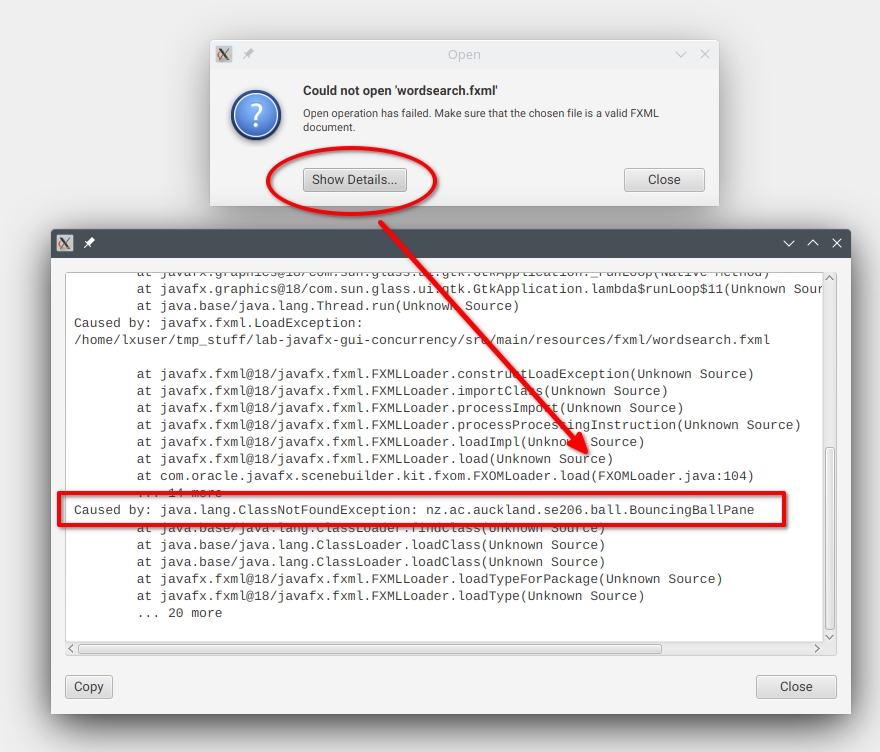
Follow these steps to fix it:
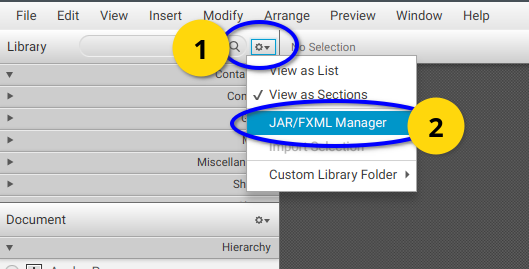
- Open Scene Builder (but not on the
wordsearch.fxmlfile). - Click on the cogwheel next to the Library search, then select JAR/FXML Manager:
- Click on Add root folder with *.class files:
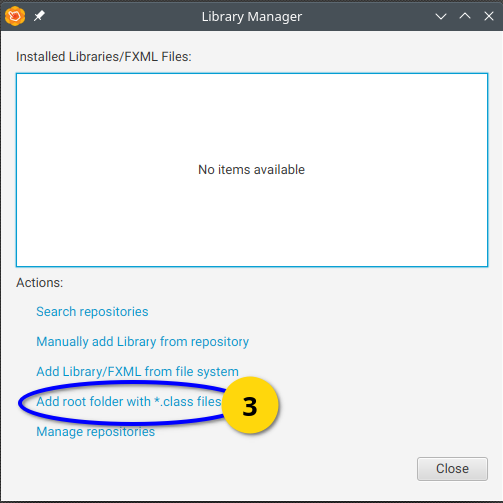
- Navigate to your project’s
target/classesfolder, then click Open:
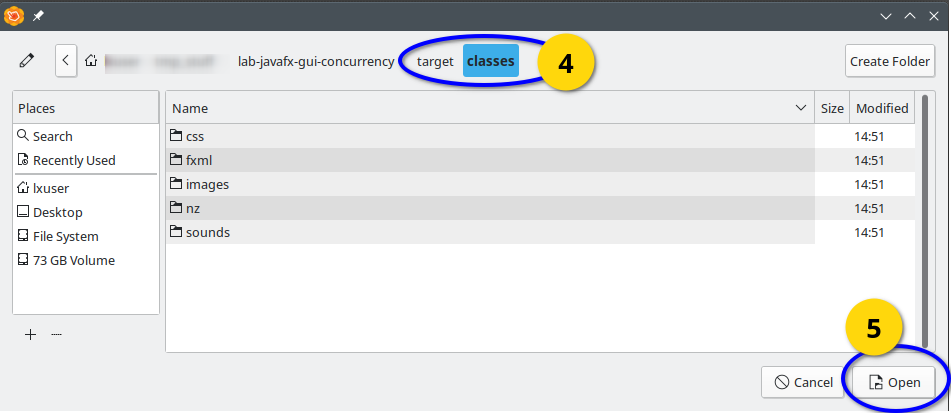
- It should have detected the
BouncingBallPanecomponent, then click Import Component:
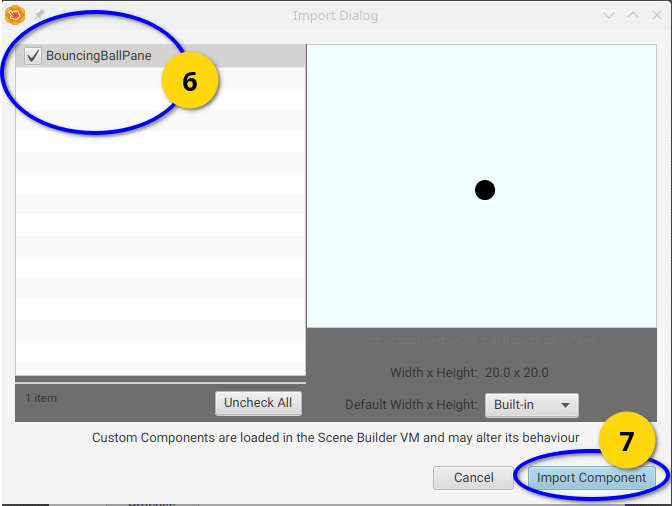
- You’ll see it’s now installed. Click Close:
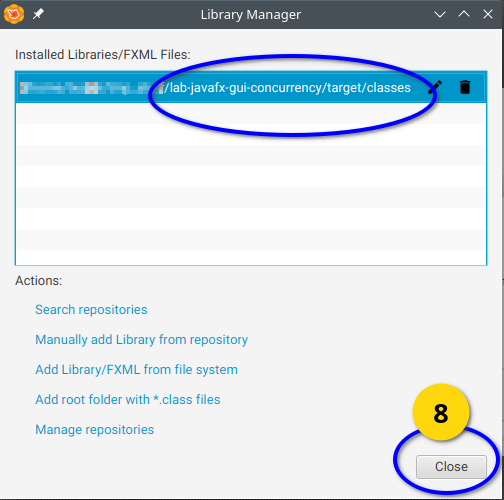
- Now open up the
wordsearch.fxmlfile. You’ll noticeBouncingBallPaneappears in the Custom component section, and the view also appears in the workspace area:
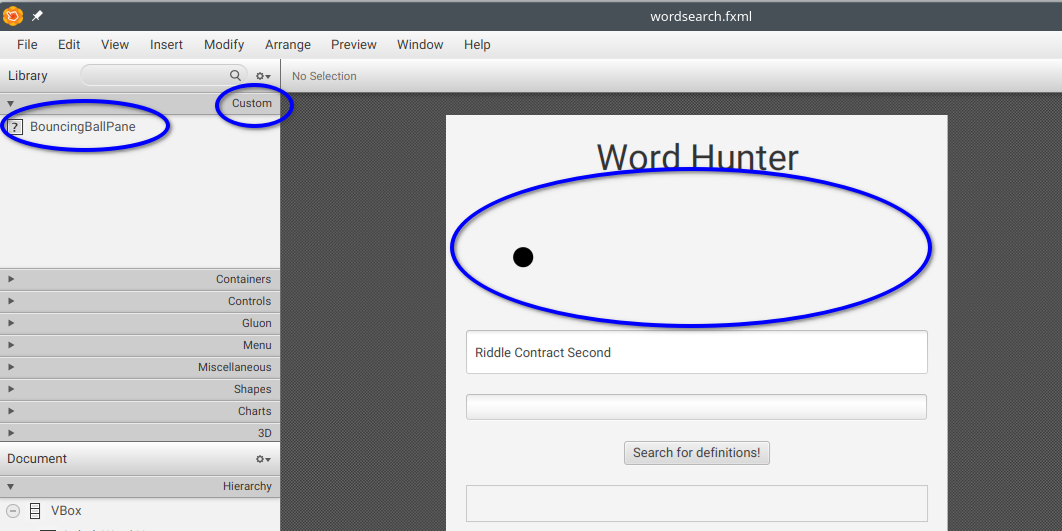
Loading your own components in Scene Builder
If you create your own components, you can follow these same steps to have them appear in Scene Builder.
Great tip shared by Connor Hare: If you encounter an error, it might be because your component is throwing an exception when Scene Builder tries to instantiate it. You therefore need to make sure that your component’s constructor doesn’t throw any exceptions. Otherwise, it will fail to load the component, and just not recognise it as a valid component. This means that you need to make sure that all values passed in through the constructor do not result in an exception being thrown when they are null, because Scene Builder will construct the component with all null values.
 Get your hands dirty!
- Fork the JavaFX GUI Concurrency repository to your GitHub account, then clone your fork.
- Import the project into VS Code (see the FAQ for help).
- You might be getting some compilation errors, since some dependencies are missing. We can fix this by searching for the missing dependencies:
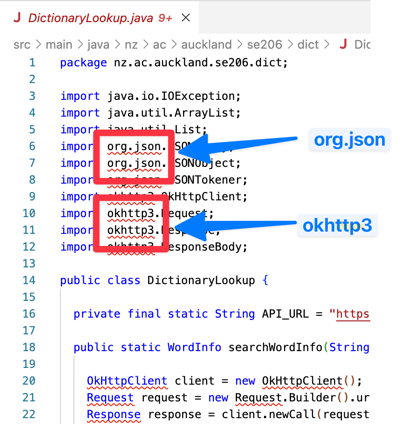
- Go to https://mvnrepository.com and search for the missing dependencies
org.jsonandokhttp3. Click one of the latest stable version, often guided by the one with highest downloads. Add the dependencies to thepom.xmlfile:
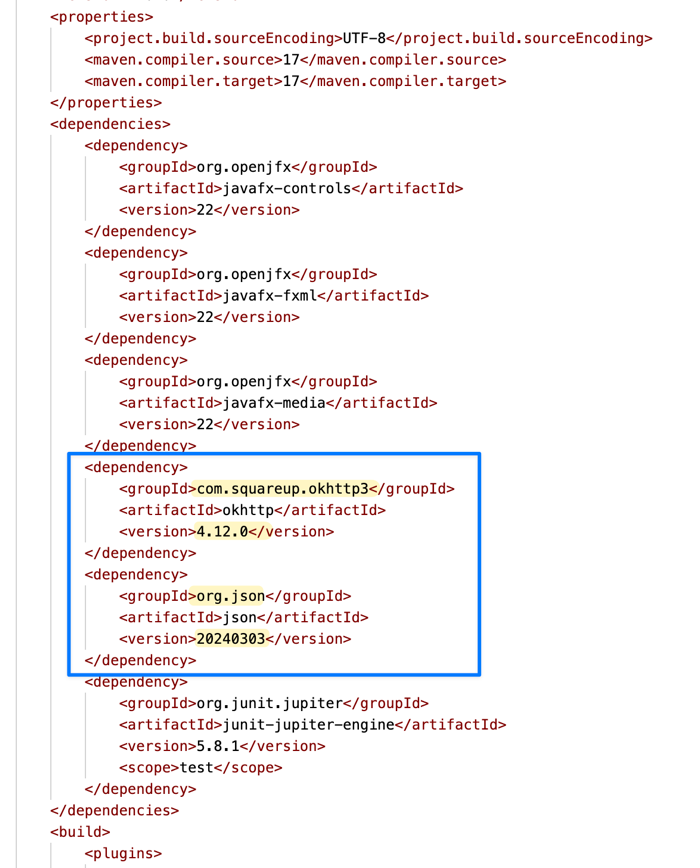
- Run the project using the Maven wrapper. The app should start up.
- Perform some search like in the examples above. Notice how the GUI freezes.
- If you have a look at the terminal, you will notice results are indeed coming in, even if the GUI doesn’t show this:
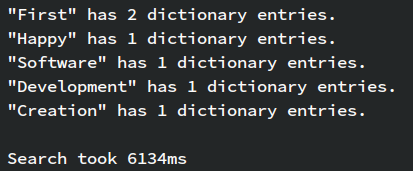
- The app froze for over six seconds! What an absolute disgrace!
- The only file that you need to modify is
WordSearchController.java. However, you are still welcome to browse the other files to understand how everything works. - The reason why GUIs freeze is because there is something time-consuming that is preoccupying the JavaFX Application Thread. Any idea which code is causing this? You guessed it:
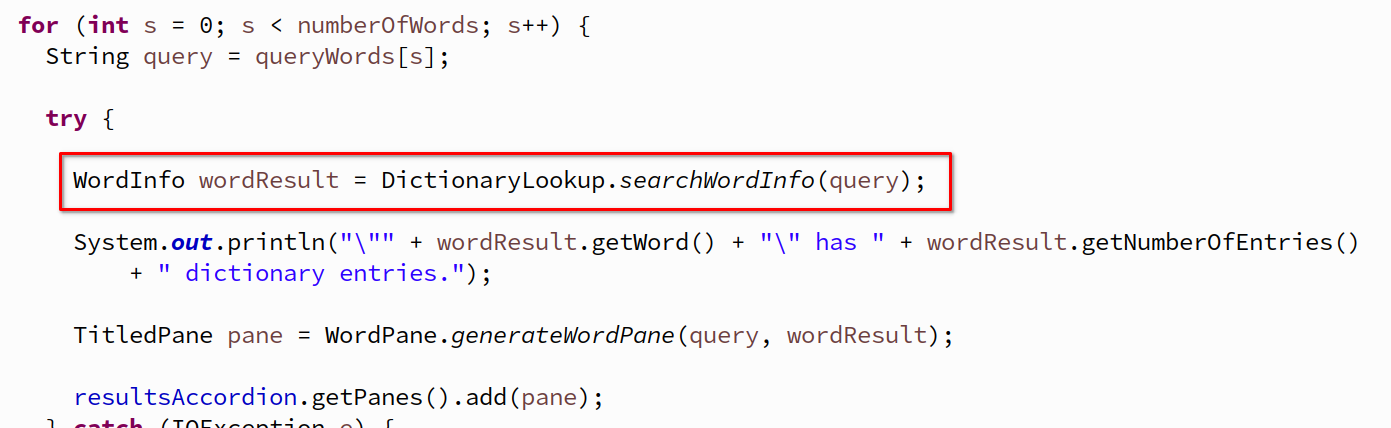
- This line of code is calling the Dictionary API, which (expectedly) takes time to get the results. We need to move this code to a background thread, so that the JavaFX Application Thread is not the one responsible to execute it. We are also allowed to give this background thread other things to do, but there are limitations on what we can delegate to a thread that is not the JavaFX Application Thread. Review the GUI Concurrency topic if needed.
- Create an anonymous class of type
javafx.concurrent.Task<Void>surrounding all the code in thesearchWords()method after thelong startTime = System.currentTimeMillis();code. It will all go inside theTask’scall()method. - If you run the application again now, you’ll notice it doesn’t freeze. But you might also notice that it’s also not doing the search! Although we have wrapped the code inside a
Task, we didn’t give this task to a background thread to work on it! You therefore need to create a newThreadinstance (giving it the task in the constructor), and tell that thread tostart(). - Run the code again. You’ll notice in the terminal that the search is now happening. But we have another problem:

- The JavaFX runtime has detected that some thread (“Thread-2” in this case) other than the JavaFX Application Thread is trying to access a GUI component (if you scroll down further in the exception stack trace, you’ll see it’s in regards to the the Accordion:

- Scroll down a little further to try and find more information about which part of your code this corresponds to. The line number might differ in your code, but in this example the most-recent information relevant to our code appears to be coming from line 65:

- If we go to line 65 (or whatever it is in your project), we see this:

- It appears that adding the
pane(a GUI component of typeTitledPane) to theAccordion(also a GUI component), has sparked all this problem. But, why don’t we see the problem on line 63, where the background thread is also interacting with the sameTitledPane panecomponent? The difference is that theAccordionis “live” in the app’sScene, and that’s the reason behind JavaFX picking on this line. - You therefore need to delegate processing of the live GUI component back to the JavaFX Application Thread. We do this using
Platform.runLater(). You will need to wrap the relevant code in aRunnable. Either use an anonymous class, or even better is to use a lambda! - Run the code. All should be working well now.
- What happens when a word isn’t found? You will also need to use
Platform.runLater()when a word isn’t found (see the... catch (WordNotFoundException e) ...section. - You might notice however, that we can click the search button twice (or more) while a search is still going on! It’s probably not something we want to support, as then the accordion fills up with duplicates, etc. Update your code such that the button gets disabled when a search starts, and re-enabled when the search ends. You can use the
setDisable()method on the button. - There are still some problems. You shouldn’t be updating the progress bar (a GUI component) from the background thread. It’s not just about it might cause more exceptions being thrown, it’s actually bad practice to let the task update GUI components. What if there are other GUI components that are interested in the task’s progress?
- Instead, we will have the task update its progress using the
updateProgress()method. The task should update its progress at the very beginning to zero, and then gradually as each word in the search completes. - We then need to
bind()the progress bar’sprogressPropertyto the task’sprogressProperty. This way, the progress bar will automatically update as the task updates. The progress bar is “listening” to the task, unlike before when the task was directly updating the progress bar (known as coupling, which is bad). - After the search completes, we will need to
unbind()the progress bar’sprogressPropertyso that later we canbind()it to another search task. - We can still improve our code a bit more to make it cleaner and more elegant:
- (a) Refactor the code inside the
for-loop by creating a method calledretrieveDefinitionAndShowResult(). Doesn’t this look much nicer?
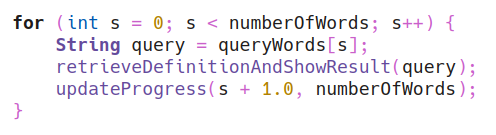
- (b) There are two cases when we need to “reset” our GUI after a search completes. In either case, we want to
unbind()the progress bar and also re-enable the search button. Write a single method to do this (e.g.,resetSearch()), and then reuse it in both of the following situations:- When the task succeeds:
setOnSucceeded(), and - When the task fails:
setOnFailed().
- When the task succeeds:
- (a) Refactor the code inside the
- Extra: If you have completed this and want to practice more, add a cancel button:
- Hint: You will need a reference to the current search task that is accessible (i.e., in scope) to the cancel button’s handler. So you will want to make the task instance as a field member.
- Add the cancel button using Scene Builder. Tie it to a handler in the controller that will call
cancel()on the task. - Update the logic inside the task, to check whether a cancel request has come through (check using
isCancelled()). If yes, it needs to end thecall()method as soon as possible. - Decide what behaviour you want to happen when a task is canceled. Do you want to clear the partial results already in the accordion? What about the task’s progress (i.e., what should the progress bar show)—should it reset to 0% or be considered 100%? Up to you!
- You’ll want to make sure that the search and cancel buttons have the correct combination of enabling/disabling.
- You’ll notice the stack trace for the
IOExceptionbeing printed, so you might want to remove that since it’s now expected this happens with the canceling. - You might find using
setOnCancelled()useful on the task.
- Extra: Maybe you would like to add some messages/notifications to the user when certain things happen, like when the search is canceled or completed successfully.